
Getting Started
This section covers the initial setup required to use Lion Ads in your Unity project.
Before displaying ads, make sure the package is installed and the required ad settings have been configured in the Lion Manager.
Install Lion Ads through the Unity Package Manager using the Lion registry.
Open the Settings Manager
In Unity, open the Lion Manager window by navigating to:
Window → Lion Studios → Settings Manager
Configure Lion Ads
In the Ads section, enter the required ad unit IDs for each supported platform. Your Lion Studios manager will provide these IDs during setup.
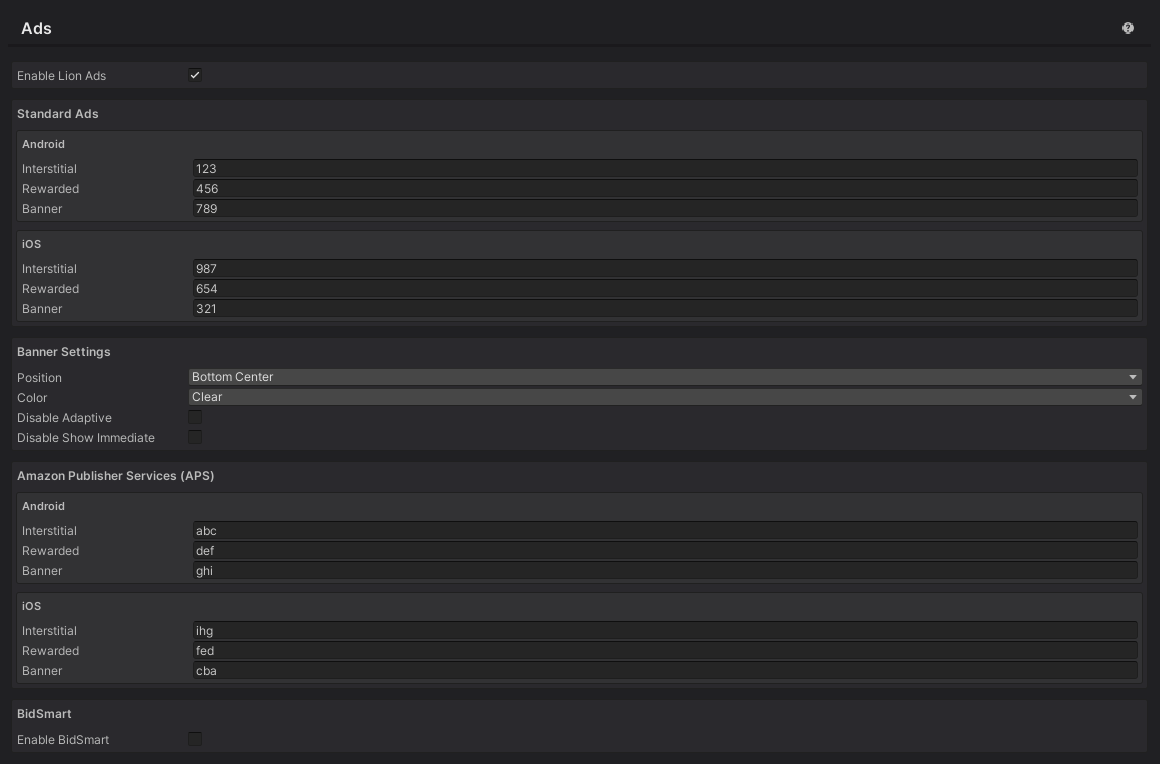
Banner Settings
The Banner Settings section allows you to configure how banner ads behave in your game. For additional details, please refer to the Displaying Ads section.
Amazon Publisher Services (APS)
If your project uses Amazon Publisher Services (APS), enter the required APS ad unit information in the corresponding section of the Ads settings. For additional setup details, please refer to the Third Party section.
BidSmart
For information on enabling and configuring BidSmart, please refer to the BidSmart section.
Next Step
Once setup is complete, continue to the next section to learn how to display banner, interstitial, and rewarded ads.
Last updated
Was this helpful?