
AppCharge
Introduction
Appcharge lets you add a mobile checkout flow directly inside your iOS or Android app. Instead of using native in-app purchases, it sends players to an external checkout page where they can purchase an IAP using any card, Apple Pay, Paypal, or Google Pay. It’s a way to handle payments through a secure link-based flow.
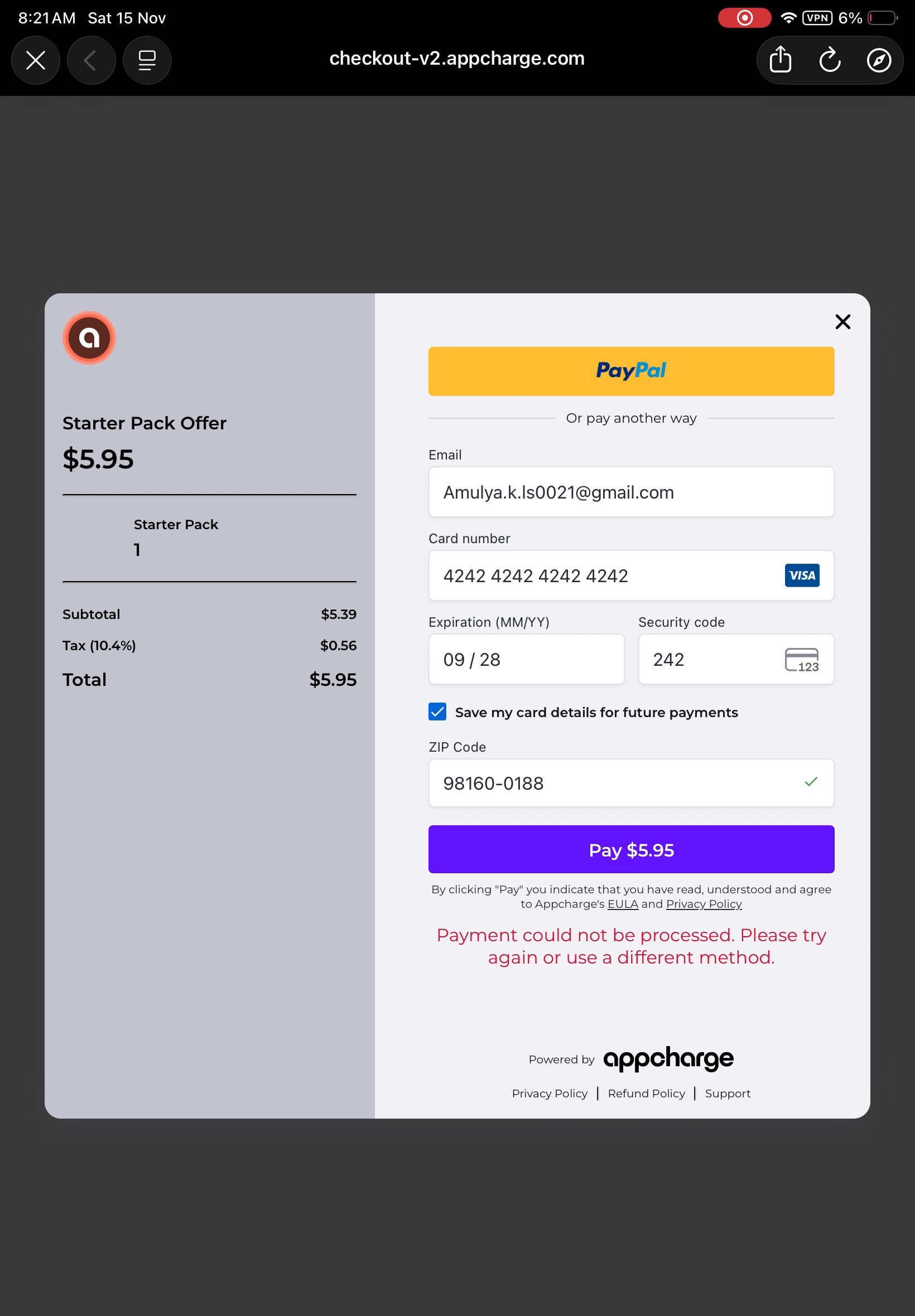
What does this package do?
Lion - Appchargehandles SDK initialization and the backend infrastructure required to create appcharge checkouts.Automatically handles sending required IAP events to Adjust and Lion Analytics.
Implementation
Install the
Lion - Appchargepackage from the Unity package manager.Install the Appcharge package from the
LionStudios/Settings Manager/AppChargetab.
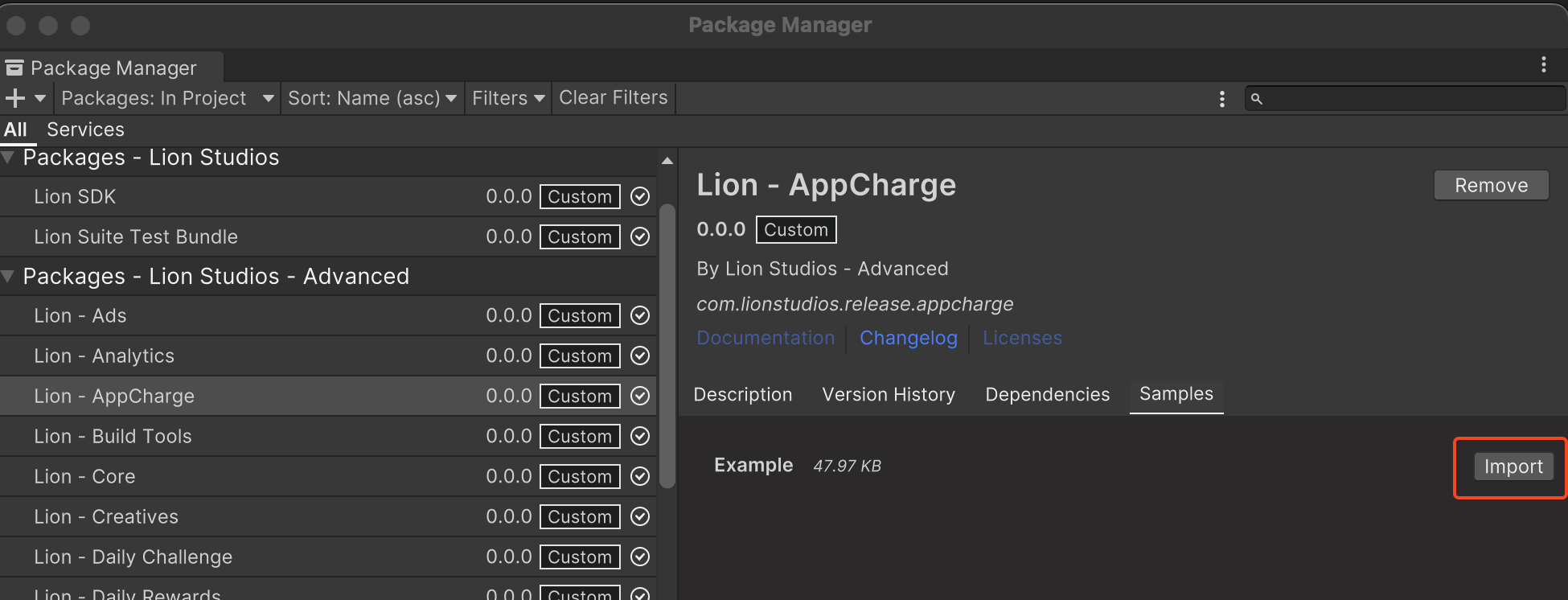
We have provided a sample scene where you can see the full integration done. To download go to
Unity Package Manager->In Project->Lion - Appcharge->Sample Tab->Import
Go to the
LionStudios/Settings Managerwindow and fill out the Sandbox and Production public keys. These keys will be provided by your manager.

Initialization
AppChargePurchaseManger.Initialize(config, customerId = null)
Call this method to initialize the SDK. This should be done at startup of your game to ensure that Appcharge IAPs are ready to use.
Parameters
AppChargeRemoteConfig config(Required) - You must pass a config object that specifies if you want to enable appcharge checkout and also specifies discounts you want for specific IAPs. Ideally you would retrieve this config from your remote configuration.AppChargeRemoteConfighas 2 parameters you need to specifybool enable- Disables/enables appcharge checkout flow. If set to false, initialization will be preventedList<AppchargeItemConfig> appChargeItems- Here you can specify the skus of your IAPs and discountPercents. Offering discounted prices for IAPs purchased through appcharge may incentives players to purchase.
string customerId(Optional) - You can provide your own unique player ID if your game already uses one. If you don’t supply a value, the WhoAmI Service will automatically generate and return a persistent unique player ID instead. More info on WhoAmI Service here.
Below is an example of how to create an AppChargeRemoteConfig object and to initialize Appcharge.
Example:
private void Start()
{
    var config = new AppChargeRemoteConfig();
    config.enable = true;

    // Add a test item with 10% discount
    var discountedItem = new AppChargeItemConfig
    {
        sku = "com.lionstudios.starterPack",
        discountPercent = 10
    };
    config.appChargeItems.Add(discountedItem);

    string playerId = "player_123"

    AppChargePurchaseManager.Initialize(playerId, config);
}
Start checkout
After you have initialized the SDK you can now let players checkout IAPs through the Appcharge checkout window.
AppChargePurchaseManager.Purchase(AppChargePurchaseRequest request)
Use this method to open the checkout flow. You can test purchase flow in debug builds. You can use the test cards provided here.
Parameters
AppChargePurchaseRequest request- This object specifies all the details of the IAP a player is purchasing. Below are the different parameters you can specify:Price(Int) (Required) - Price of the IAP. Send this in cents. Example if item cost is $5.00 send 500. You can use theAppChargePurchaseManger.CalculateDiscountedPrice(originalPrice, productSku)method to get an IAP items discounted price that you setup in theAppChargeRemoteConfigin the initialize step above. More info on this here.Currency(String) (Required) - The type of currency to useOfferName(String) (Required) - Name of your offer. This will be displayed as the title in the checkout windowOfferSku(String) (Required) - Sku of your offerList<AppChargeItem> items(AppChargeItem) (Required) - Items that will be given to the player. The following parameters need to be specified for this items listName(String) (Required) - name of itemSku(String) (Required) - Sku of the itemQuantity(Int) (Required) - amount of the itemAssetUrl(String) (Optional) - Image of the itemQuantityDisplay(String) (Optional) - Overrides thequantityvalue displayed in the checkout. Useful for presenting time-based products or showing abbreviated values.DisplayName(String) (Optional) - Localized item name.
OfferAssetUrl(String) (Optional) - Image of the itemOfferDescription (String) (Optional) - Description of offer shown at checkout window screen
OfferDisplayName(String) (Optional) - Localized offer nameOfferPricePointMetadata(Int) (Optional) - Base price of the price point in USD centsCustomerEmail(String) (Optional) - Customers email
Example of how to create a checkout:
private void PurchaseItem()
{
    var item = new AppChargeItem(
        name: "No Ads",
        sku: productSku,
        quantity: 1
    );

    var request = new AppChargePurchaseRequest(
        price: 200, // price in cents -> will show $2 price in checkout
        currency: "USD",
        offerName: "Starter Pack Offer",
        offerSku: productSku
    );

    request.AddItem(item);

    AppChargePurchaseManager.Purchase(request);
}
Setup Callbacks
Here are the following callbacks you need to integrate into your existing game. All examples can also be found in the sample scene provided by the Lion - Appcharge package.
OnAppChargeInitialized- Fired when Appcharge gets initialized
AppChargePurchaseManager.OnAppChargeInitialized += () =>
{
    Debug.Log("[Demo] AppCharge initialized.");
};OnAppChargePurchaseStart- This gets invoked whenever the purchase flow begins to load. It will be invoked after anyAppChargePurchaseManager.Purchase(request)method calls. The Appcharge checkout window can sometimes have a slight delay before it is shown, so it is recommended to show a loading indicator to players here.
AppChargePurchaseManager.OnAppChargePurchaseStart += ShowLoadingScreen;OnAppChargePurchaseSuccess- This gets invoked when the player successfully purchases an item. AnOrderResponseModelobject is passed with this callback, and it contains information about the IAP that was purchased. Use this callback to handle giving the reward to the player
private void SetupCallback()
{
    AppChargePurchaseManager.OnAppChargePurchaseSuccess += OnPurchaseSuccess;
}


private void OnPurchaseSuccess(OrderResponseModel orderResponseModel)
{
    _loadingText.gameObject.SetActive(false);

    Debug.Log($"Successful purchased {orderResponseModel.offerName}. Your orderId is {orderResponseModel.orderId}");

    // Handle giving reward to player here.....
}OnAppChargePurchaseFailed- Gets invoked whenever a purchase fails. A failed purchase could happen for a few reasons including if a player closed out of the checkout window, or if their card declined. It will get invoked every time a player exits out of the checkout window without purchasing.
AppChargePurchaseManager.OnAppChargePurchaseFailed += HideLoadingText;OnAppChargePricePointsSuccess- Gets invoked if price points were successfully retrieved. This will only get invoked after the GetPricePoints() method is called. More info and an example on this can be found here.OnAppChargePricePointsFailed- Gets invoked if price points failed to be retrieved. This will only get invoked after the GetPricePoints() method is called. More info and an example on this can be found here.
Other Public Methods
Here are a few more public methods that can be used:
AppChargePurchaseManger.CalculateDiscountedPrice(string originalPrice, string sku, string currencyCode = "USD")
AppChargePurchaseManger.CalculateDiscountedPrice(string originalPrice, string sku, string currencyCode = "USD")This method will return an integer that represents the discounted price of an object. This method will use the AppChargeRemoteConfig items you setup here and provides an easy lookup solution for you to get the discounted price of an item. Pass it the localizedPrice, and also the productSku of the IAP. The productSku must match one of the Skus set in the AppChargeRemoteConfig items you set.
The optional currencyCode parameter is set to USD by default. Appcharge currently doesn't support any other currency type for their checkout window but may in the future. When this does happen, you can pass a different Iso4217 currency code and this method will perform the correct discount calculation based on this.
Example:
private void ShowPriceDiscount()
{
    // Calculate discounted price (in cents)
    int discountedPriceCents = AppChargePurchaseManager.CalculateDiscountedPrice(localizedPrice, productSku); //This method will return the discout you setup in your AppChargeRemoteConfig
    float discountedDollars = _discountedPriceCents / 100f;

    Debug.Log($"[Demo] Original Price: {localizedPrice}");
    Debug.Log($"[Demo] Discounted Price: ${discountedDollars:F2}");

    // --- Update UI ---
    _originalPriceText.text = $"<s><color=#FF0000>{localizedPrice}</color></s>";

    // Apply final discounted price
    _discountedPriceText.text = $"${discountedDollars:F2}";
}
GetPricePoints()
GetPricePoints()This method retrieves price points. These price points must be setup prior on the Appcharge Dashboard. More info about dashboard setup can be found here. After this method is called, either the OnAppChargePricePointsSuccess or OnAppChargePricePointsFailed callback will be invoked. If price points are successfully retrieved, then you have access to a PricePointModel object that contains all your price point info you setup on the dashboard. More info on price points can be found here.
Example:
private void GetPricePoints()
{
    AppChargePurchaseManager.OnAppChargePricePointsSuccess += (pricePointsModel) =>
    {
        Debug.Log(pricePointsModel.pricingPointData);
    };

    AppChargePurchaseManager.OnAppChargePricePointsFailed += () => { Debug.Log("Issue retrieving price points!"); };

    AppChargePurchaseManager.GetPricePoints();
}
List<OrderResponseModel> GetPurchaseHistory()
List<OrderResponseModel> GetPurchaseHistory()This method returns a list of all the IAP orders a player has made with Appcharge. The OrderResponseModel contains information about the purchase. This includes the order ID, the item that was purchased, quantity, date of purchase and more.
Additionally, this information can also be accessed via the AppChargePurchaseManger.PurchaseHistory field.
Example:
private void GetPlayersOrderHistory()
{
    List<OrderResponseModel> playersOrderHistory = AppChargePurchaseManager.GetPurchaseHistory();

    Debug.Log($"Player has made {playersOrderHistory.Count} purchase(s)");

    foreach (var order in playersOrderHistory)
    {
        Debug.Log($"Item: {order.offerName}, orderId: {order.orderId}");
    }
}
bool IsInitialized
bool IsInitializedThis returns a bool that indicates whether Appcharge is initialized or not.
bool PlayerHasPurchasedViaAppcharge
bool PlayerHasPurchasedViaAppchargeThis returns a bool that indicates if the player has made a successful purchase with Appcharge. This can be used to handle whether to show only Appcharge flows for a player and to hide the ability to checkout via the normal built in IAP flow.
Validate IAP Events
This package will handle automatically sending IAP events. Please be sure to validate IAP events are sending properly.
For debug builds, the sandbox environment for Appcharge will be used. With this, Lion Analytics will send the inapp_purchase event and Adjust will send a purchase_notverified event.
The
inapp_purchaseevent will havevalidatedReceiptparameter as "NoValidation". This is done on purpose so that test purchases are not counted. Also in the additionalData object, a parameter calledcheckoutTypewill have the valueAppchargeAdjust will have an additional parameter called
checkoutTypethat will be set toAppcharge
For production builds, the production environment for Appcharge will be used. With this, Lion Analytics will send the inapp_purchase event and Adjust will send a dtc_purchase event.
The
inapp_purchaseevent will havevalidatedReceiptparameter as "Validated". Also in the additionalData object, a parameter calledcheckoutTypewill have the valueAppcharge.Adjust will have an additional parameter called
checkoutTypethat will be set toAppcharge
Last updated
Was this helpful?