
PTS Advance Implementation
🧩 PopupView
Defines popup identity, placement, manages offer buttons and custom close buttons.
Each popup must include a PopupView component.
Key Settings:
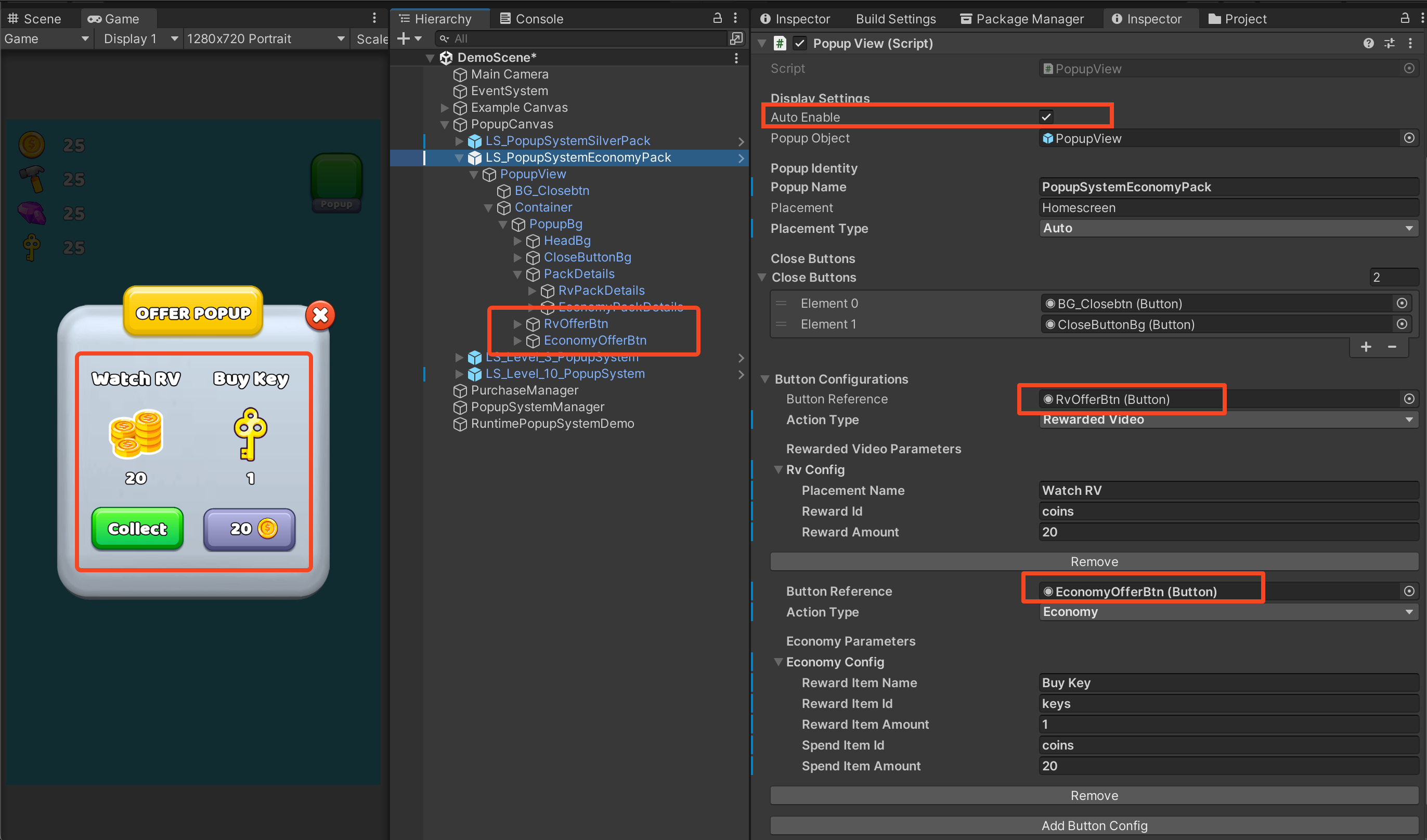
Display Settings: Auto Enable, Popup Object
Popup Identity: Popup Name, Placement, Placement Type
Close Buttons: Custom close button references
Button Configurations: List of offers in this popup
Auto Enable setting is critical for proper functionality.
Read the complete AutoEnable guide →
Quick Summary:
Auto Enable = true(Default) - System shows/hides popup automaticallyAuto Enable = false(Advanced) - You control GameObject visibility manuallyPopupFloatingButton REQUIRES
Auto Enable = true
🧩 PopupFloatingButton
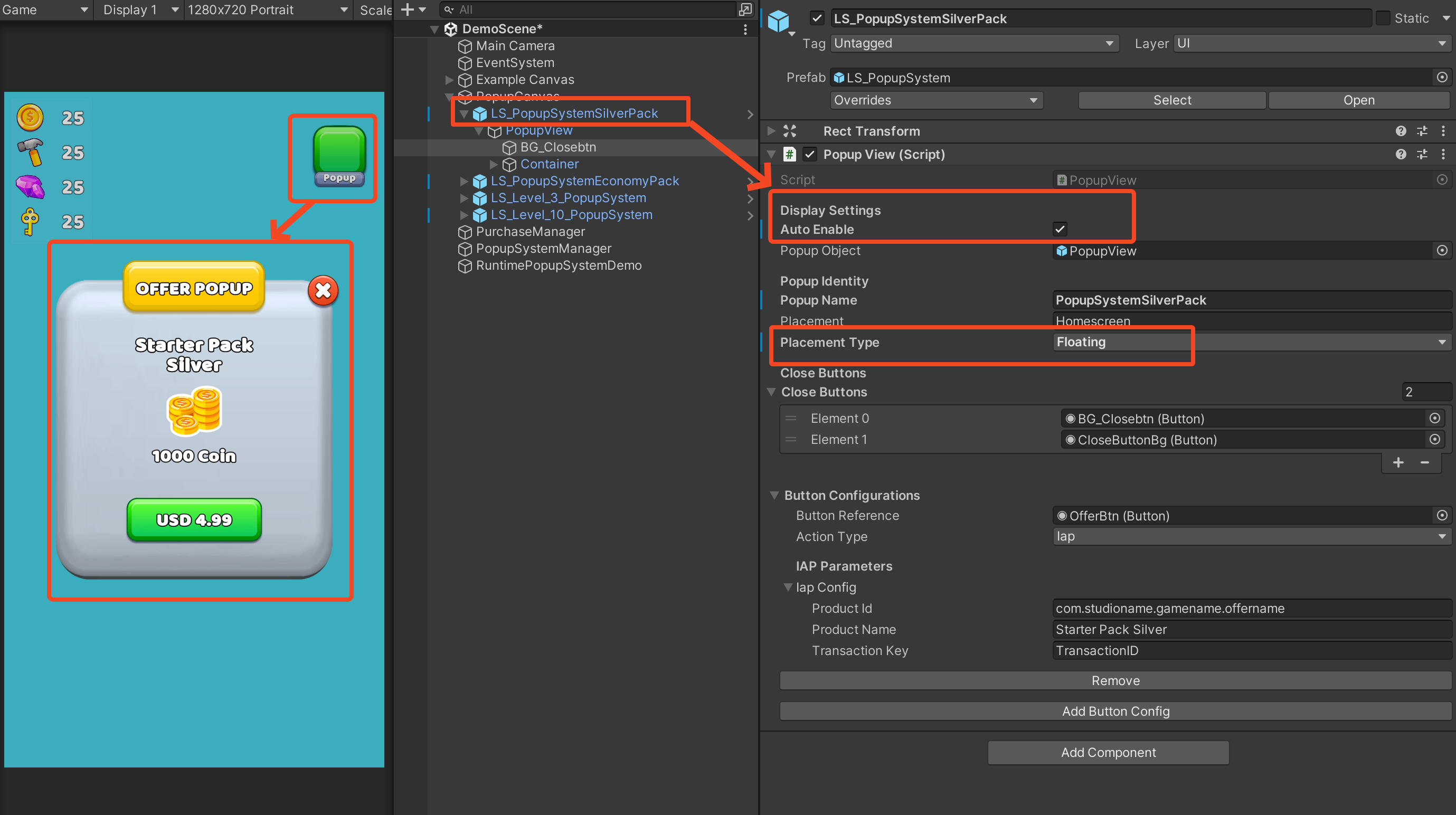
Used to trigger a floating-style popup. Example: clicking a floating button opens a popup at runtime.
Setup:
Add
PopupFloatingButtoncomponent to your button GameObjectAssign the
PopupViewreferenceEnsure PopupView has Auto Enable = true
Set PlacementType = Floating in
PopupView
Analytics Tracking Flow
PTS automatically sends three types of analytics events using PopupAnalytics and LionAnalytics.
ProductViewed
When popup opens
Fired once per offer when shown
UiInteraction
When user interacts or closes popup
Tracks clicks and close actions
Achievement
When offer completes
Fired after successful purchase, ad, or economy action
PopupTriggerType in Analytics
Each event includes popup_placement_type which identifies how the popup was triggered:
Auto - Popup appeared automatically (level complete, login, etc.)
Floating - User clicked a button to open popup (shop button, main icon, etc.)
Customization
PTS is designed to be flexible:
Create Your Own Popup Prefabs
Design your UI however you want
Just add
PopupViewcomponentConfigure offers in inspector
Add 1 to Many Offers
Single popup can have multiple offers
Mix offer types (IAP + RV + Economy)
Add Custom Close Buttons
Any button can close the popup
Examples: "Continue", "Cancel", "Home", "X"
Add buttons to Close Buttons list in
PopupView
Runtime Configuration Support
Create different offer combinations
Rotate between variations automatically
Level based tiggers are supported
Even configure popups dynamically from remote config is also possible check sample scene for runtime configuration demo.
Each popup will still track all events correctly when set up in the right format.
Last updated
Was this helpful?